
Guide / Your first rule
How to set a Shopify reorder point in StockLark
A reorder point tells your team when to review replenishment. Target stock tells it how far to replenish. In StockLark, you set both manually for each tracked variant and location.
By the StockLark team · Updated
1. Estimate a starting threshold
A simple planning estimate is expected demand during supplier lead time plus a safety buffer. For example, 5 units per day over a 10-day lead time, plus a 10-unit buffer, gives a starting reorder point of 60. This is an illustration, not a demand forecast; adjust it for variability, seasonality, and your purchasing constraints.
StockLark does not calculate daily demand from Shopify sales. Supply your own estimates. Its lead-time and safety-stock fields are planning references, not additional terms automatically added to the suggestion.
2. Select the variant and location
Check that the variant has inventory tracking enabled and that you are using the intended location. Use Shopify’s available quantity consistently. One warehouse’s rule should not be treated as a total across all locations.
3. Set the target and supplier
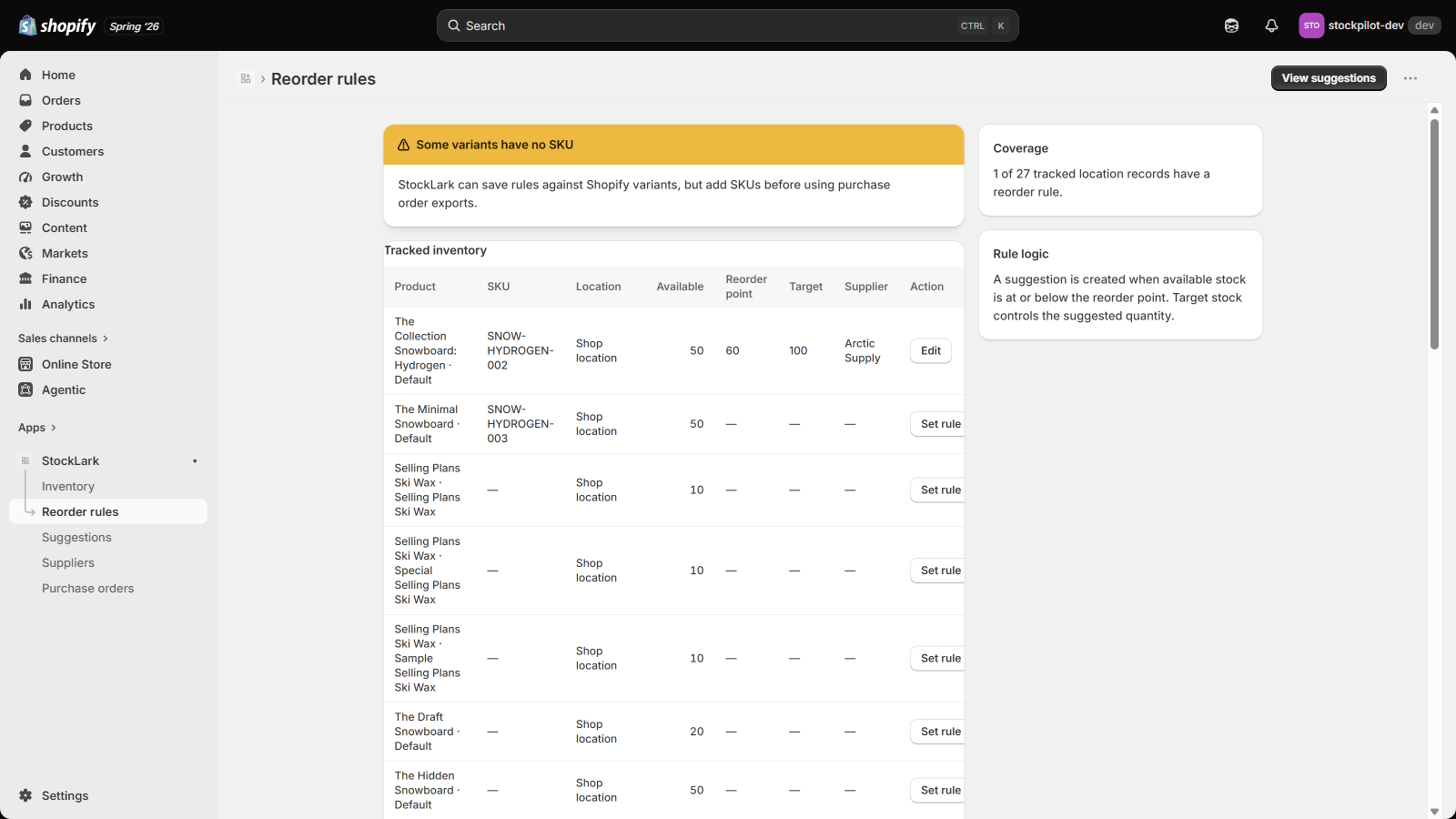
For this example, set a reorder point of 60 and a target of 100. Choose a supplier. Base your real target on storage space, cash committed to inventory, purchase frequency, and any supplier minimums; the example does not optimize those constraints for you.
4. Check the calculation
- Available 50, incoming 0: 100 − 50 − 0 = 50 suggested units.
- Available 50, incoming 10: position 60 meets the trigger; 100 − 60 = 40 suggested units.
- Available 50, incoming 20: position 70 exceeds the trigger, so no reorder is suggested.
- Available 70: above the 60-unit reorder point, so no reorder is suggested.
- Available 50, incoming 60: position 110 exceeds the trigger, so the suggestion is zero.
“Incoming” here means outstanding quantities on Ordered or Partially received StockLark POs for the same variant and location. Drafts and orders held only in other systems do not count.
5. Review before purchasing
Confirm supplier minimums, pack sizes, prices, and recent deliveries yourself. Create a purchase-order draft, export it, and send it through your usual supplier process. Revisit your thresholds when trading conditions change.
Why did I get no suggestion?
Check whether available stock plus outstanding StockLark orders exceeds the reorder point, whether a rule exists for the intended variant and location, or whether inventory data is unavailable. A missing or untracked inventory record is not evidence of zero stock.