
01 / Reorder planning
Shopify reorder planning, with every number explained
Set a reorder point and target stock for each tracked variant and location. StockLark uses Shopify’s available inventory and outstanding StockLark purchase orders to show what to buy next.
By the StockLark team · Updated
Choose the trigger. Set the destination.
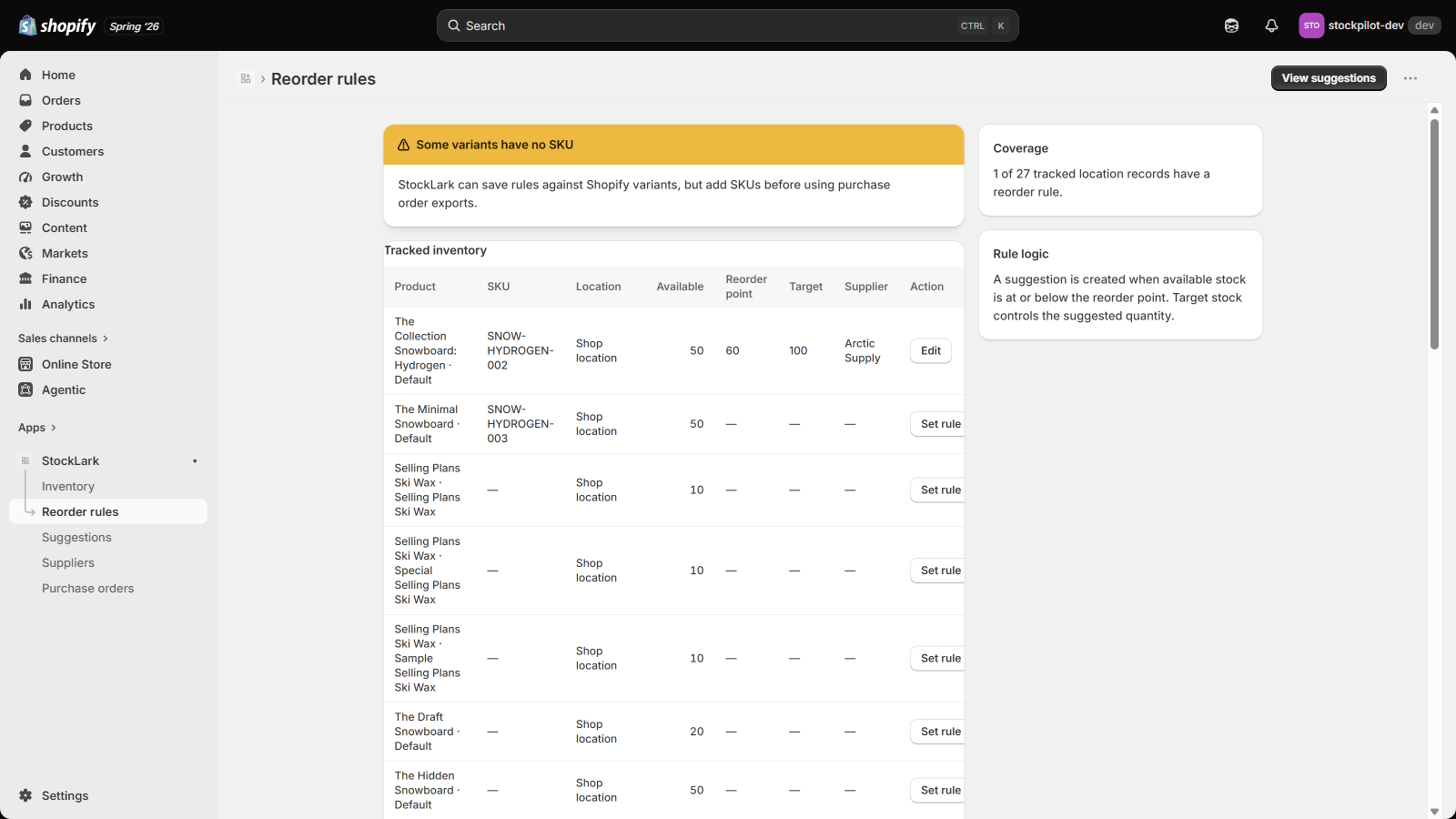
The reorder point is the inventory position at or below which a rule triggers replenishment. Inventory position means Shopify available stock plus outstanding StockLark PO units. Target stock is the level you want to work toward. Set both for a variant at a particular location, then assign its supplier.
Follow a 50-unit suggestion
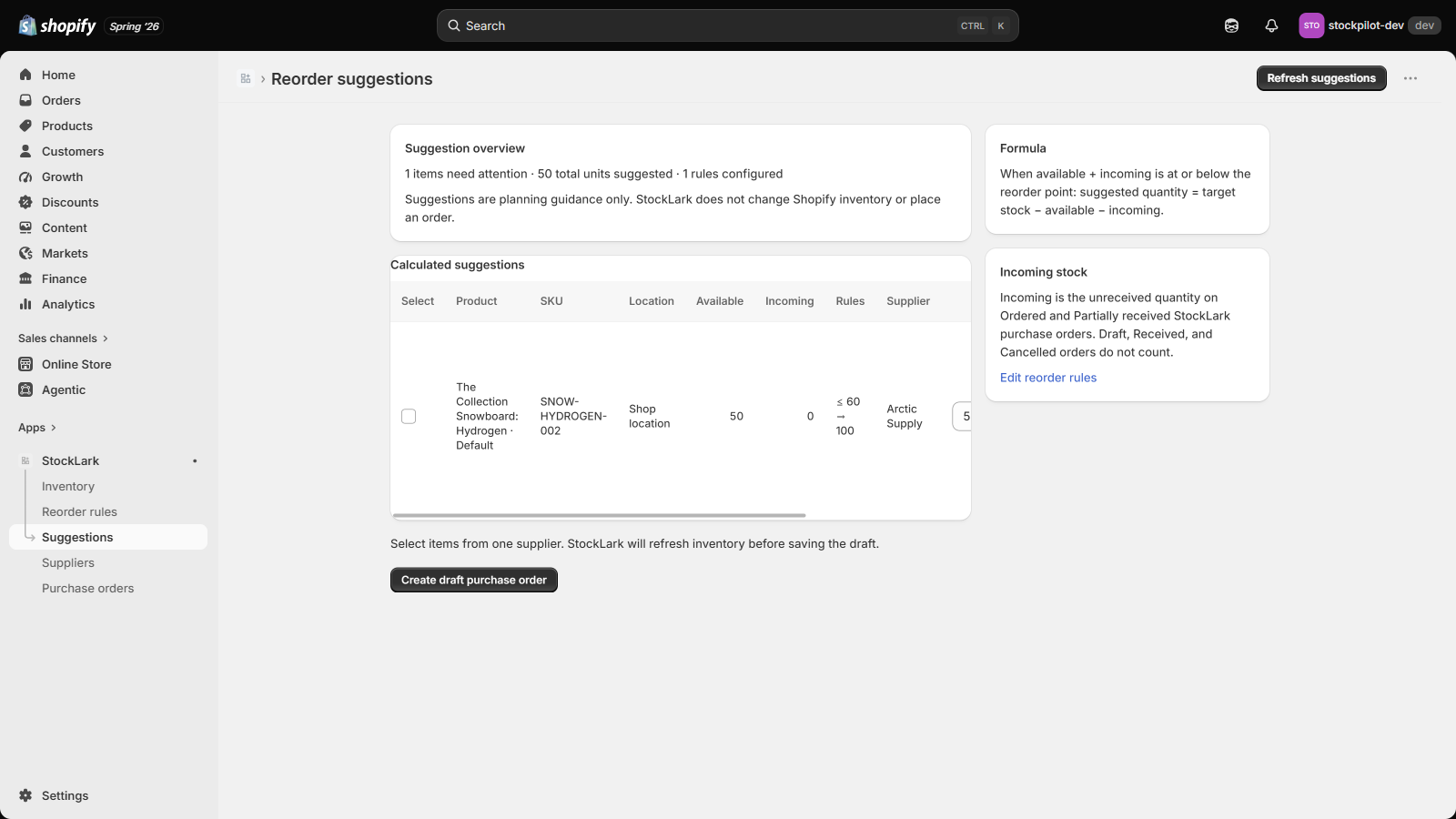
- Shopify reports 50 available units and no StockLark units are incoming. The inventory position is 50, below your reorder point of 60, so the rule qualifies.
- Your target is 100. With no outstanding StockLark purchase-order units, the suggested order is 100 − 50 − 0 = 50 units.
- If an ordered StockLark PO already has 10 units outstanding, the position is 60 and the suggestion is 40. With 20 units outstanding, the position is 70: above the trigger, so no new order is suggested.
Suggestions never fall below zero. Incoming quantities are the unreceived units on StockLark POs marked Ordered or Partially received; drafts are excluded. Incoming stock is not imported from other purchasing tools or native Shopify POs.
Designed for rules you control
This workflow fits teams that know their desired stock levels and want repeatable purchasing decisions. Lead time and safety stock can be recorded with a rule, but they do not automatically forecast demand or change the suggested quantity. StockLark does not read sales-order history.
What happens next?
Review the suggestion, select items from one supplier, and create a purchase-order draft. StockLark does not send the order or change Shopify inventory. Your team remains responsible for purchasing and stock updates.
Need help choosing thresholds? Follow the reorder-point guide. If you prefer sales-based suggestions or receiving that updates Shopify stock, start with the native Shopify comparison.